Showing posts with label windows. Show all posts

How to Run Android Apps on Your Windows or Mac Machine


Have you got some favorite smartphone apps? Not convinced by Microsoft's new Windows app selection? Itching to see some Android action on your MacBook Pro? Don't worry, just install an Android emulator on your Windows or Mac machine and run all of the Android apps that you've grown to love.

Windows 7: How to Overwrite System Files

When trying to change system files, this error is commonly experienced: “Access denied: You need permission to perform this action.” System files are protected by TrustedInstaller. Even a user logged in as an Administrator does not have permission to overwrite system files. These steps will allow the user to overcome this error and overwrite system files as needed.
This is some screenshots about the issue(s):

How to Launch Web Pages From the Taskbar in Windows 7

Do you use your computers for more than a couple of hours daily? Then you probably have a lot of windows open at the same time because you would tend to click on the browser’s launch icon to enter a URL to visit a website. It’s not really a cumbersome task but what if there’s a way to make it easier for you?

With Windows 7, you can install a miniature address bar in your taskbar. To go to a website, all you need to do is click anywhere inside the miniature address bar and type the web address. It will then launch a browser and go straight to the site that you need.

To activate the address bar in your taskbar,

How to Access your Desktop Without Minimizing Anything


If you are a user who normally keeps files, folders and shortcut icons on your desktop (like I do), this tip will be really handy especially if you are a Windows 7 user. Almost all of my work and personal folders have a shortcut on my desktop because for me, it is the fastest way to open them in a single click. You too can get a quick access to your own folders saved on your desktops without even having to minimize your open windows.

Just follow the steps below:

How to Fix Photo Viewer of Windows 7

The Windows 7 Photo Viewer is a convenient feature for viewing full photos instead of just thumbnails. The Photo Viewer of Windows 7 allows for basic image editing tools like rotating the photos and zooming in/out for more preview detail. However, a small “bug” can slow down the performance of Photo Viewer. It causes the very slow loading an display of pictures – even those that are low resolution and file size. This bug that causes the slowdown of Photo Viewer is easy to fix.

Photos below show the slow performance of Windows 7 Photo Viewer when attempting to open a jpg wallpaper


It normally does not take 2-3 seconds for the second loading notice to appear and stay on the screen before the actual image is displayed.

Customize Windows 7 Action Center Alerts

solve PC issues: 1 message
The Microsoft website describes the “Action Center as a central place to view alerts and take actions that can help keep Windows running smoothly”. While this is indeed true and informative for beginning Windows 7 users, in time the alerts can become annoyance. This article aims to explain the Action Center – how to customize the alerts, and even how to completely remove the action center flag from occupying another icon space in the busy task bar 


Click on the flag icon to view the alert details.

Resolving USB Speed Issues, “This Device Can Perform Faster” Error

Have you ever seen the “this device can perform faster” message when you connected a USB device to your computer? This message is Windows
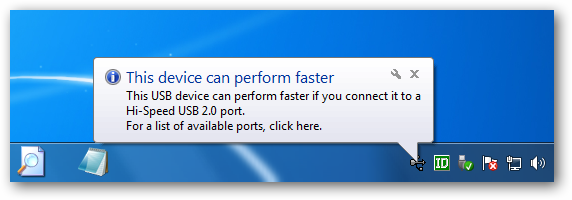
way of telling you that you’re missing out on the theoretical speed of your hardware, but it may not be clear how to fix the problem. Like many computer issues, particularly with hardware, this problem has a number of possible causes and solutions.

The message tells you to connect your device to a USB 2.0 port, but what if it’s already connected to a USB 2.0 port? Or what if you thought it was connected to a USB 2.0 port already – how can you tell the difference?

80 Self-Installer Themes For XP


Make XP cooler than ever with 80 self-installer themes. All with simple exe file.

Keyboard Shortcuts For Windows


  Windows system key combinations
• F1: Help
• CTRL+ESC: Open Start menu
• ALT+TAB: Switch between open programs

Use Keyboard as Mouse [How To]

If your mouse is not working and you don't wish to wait till you get a new mouse, you would definitely like to know how you can use your keyboard as your mouse. It is easy to use your mouse as keyboard in Windows using the On Screen Keyboard utility, but it is also possible to do the reverse.
All you need to do is:

How to Watch Star Wars 1 on Your Computer Without the Movie


Ever wanted to watch Star Wars: A New Hope on your computer and you can't afford the DVD? No problem, this movie is already available via the Internet in text form.